Review sessions and activity records
Use this web page to prepare sessions, verify saved class data, make corrections, and complete sessions for reports.
Open or prepare a session
From Dashboard, open an existing session or select New Session. Choose the class and date; the title is optional, and Running Laps is selected by default when it is available. This web step prepares the session so it is easy to find from the mobile app during class.
Understand the web session detail page
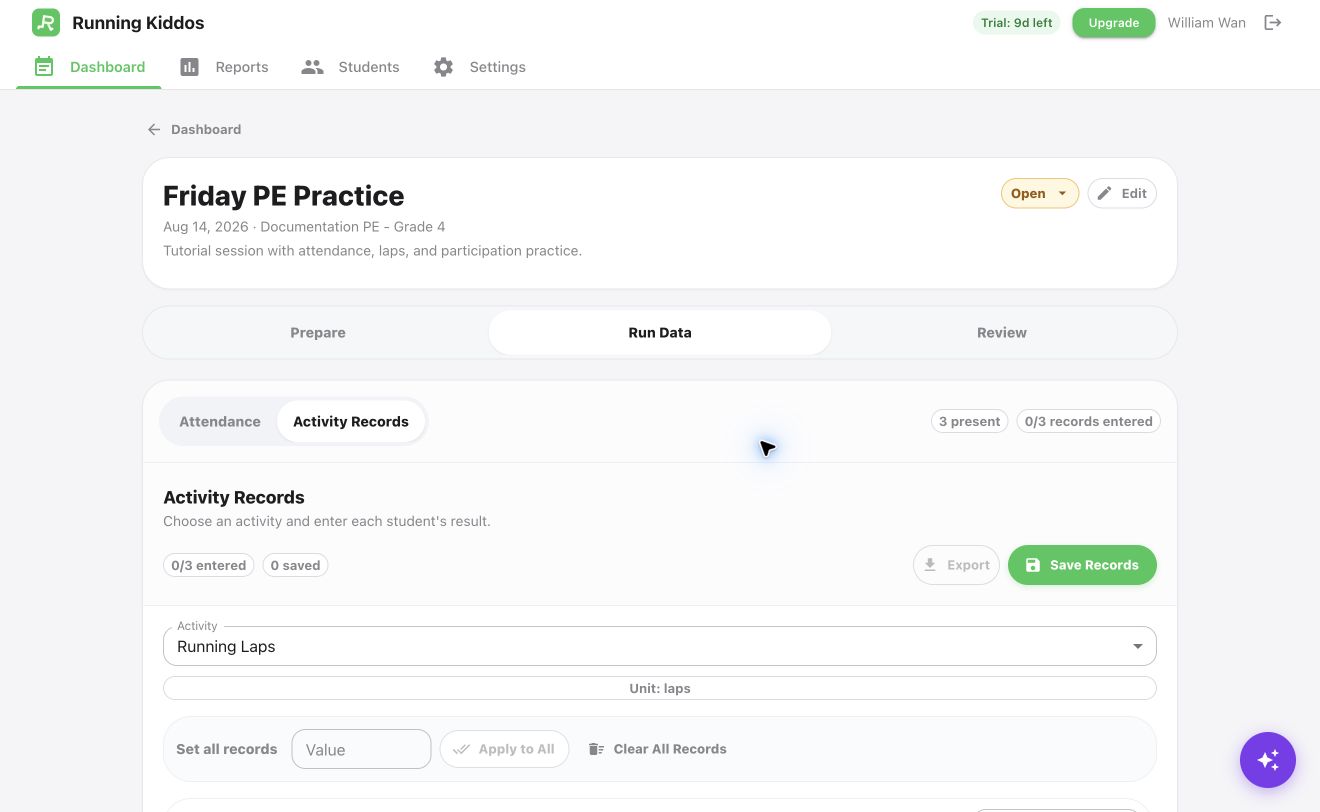
The web session detail page is for review and correction after class data is recorded, usually from the mobile app. Teachers can also enter records manually on web when scanning is not needed. Use the top card to confirm the class, date, notes, and current status. Use Run Data to review attendance and activity records, then use Review before marking the session completed.
Review or adjust activities
Confirm the session includes the activities students actually completed. To add another, select Add in the Activities panel and choose an active school activity. Its configured unit and settings are copied into the session. Add activities while online; offline mode is for saving attendance and records during class.
Review attendance
Confirm Present, Tardy, Absent, or Excused counts and fix missing statuses before completing the session.
Review or correct results
Select an activity to review saved student results, fill in missing scores, or correct values before reports are generated. If Student App is enabled, use Create Student Code for student submissions; it does not appear for completed or cancelled sessions.
Complete after review
Mark the session completed when attendance and activity records look correct. Completed sessions are locked for reporting; use Reopen before making later changes.