Run a PE class from mobile
Use this page during a normal PE class after setup is complete. It follows the teacher’s phone workflow from opening the session through final review.
Run one PE session from session detail to saved attendance and activity results.
A class roster and an open PE session. Create sessions and add activities while online before class; attendance and records can be saved offline after the session is cached on the device.
Attendance and activity records have been saved, and the session is completed when class data is ready.
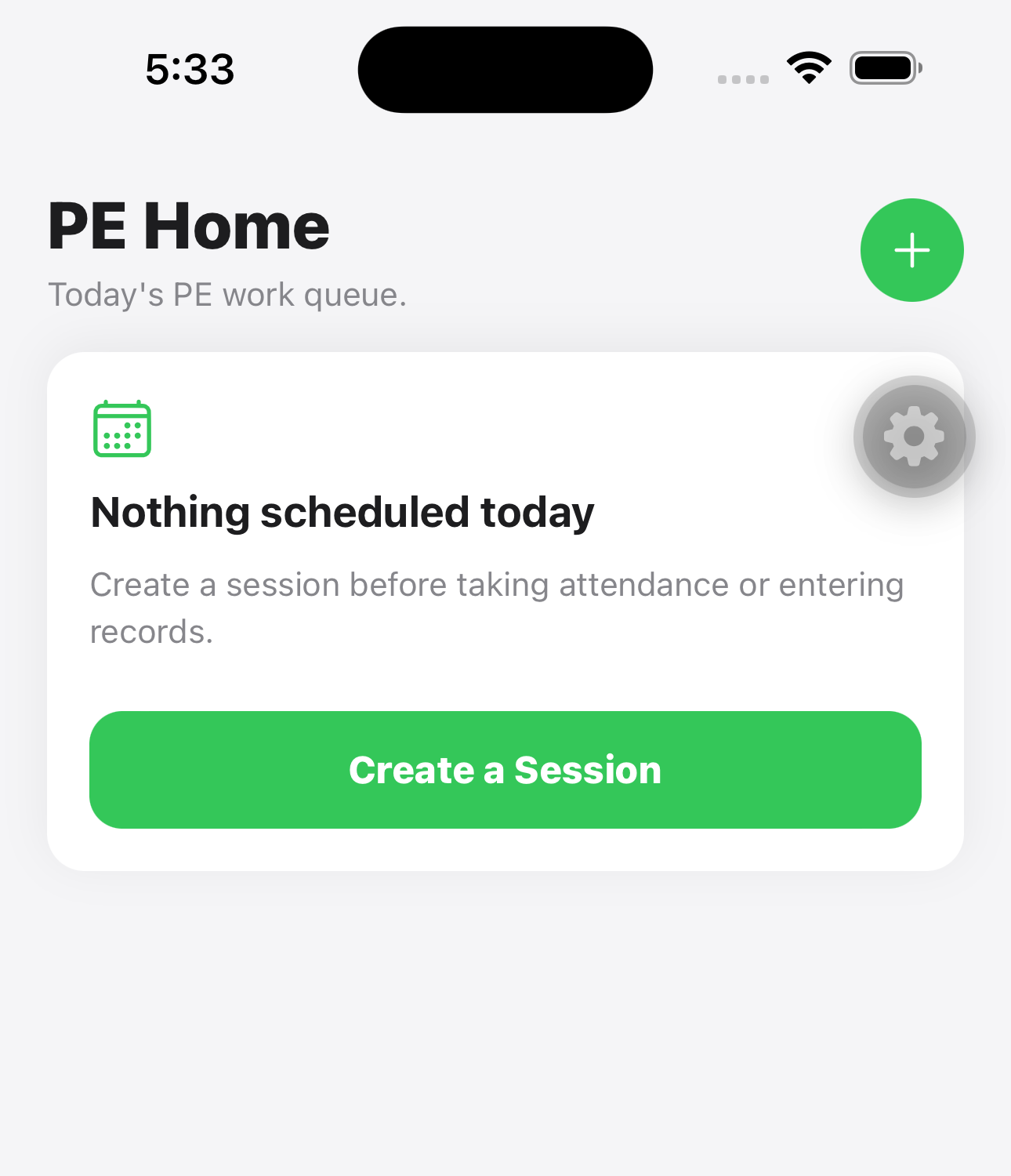
Open today’s session from PE Home
Open the mobile app. PE Home shows today’s open or completed PE sessions. Tap Open Session on the session you are teaching, then verify the activities in session detail. If nothing is scheduled, create the session while online before taking attendance or entering records.
Use Sessions when today’s card is not visible
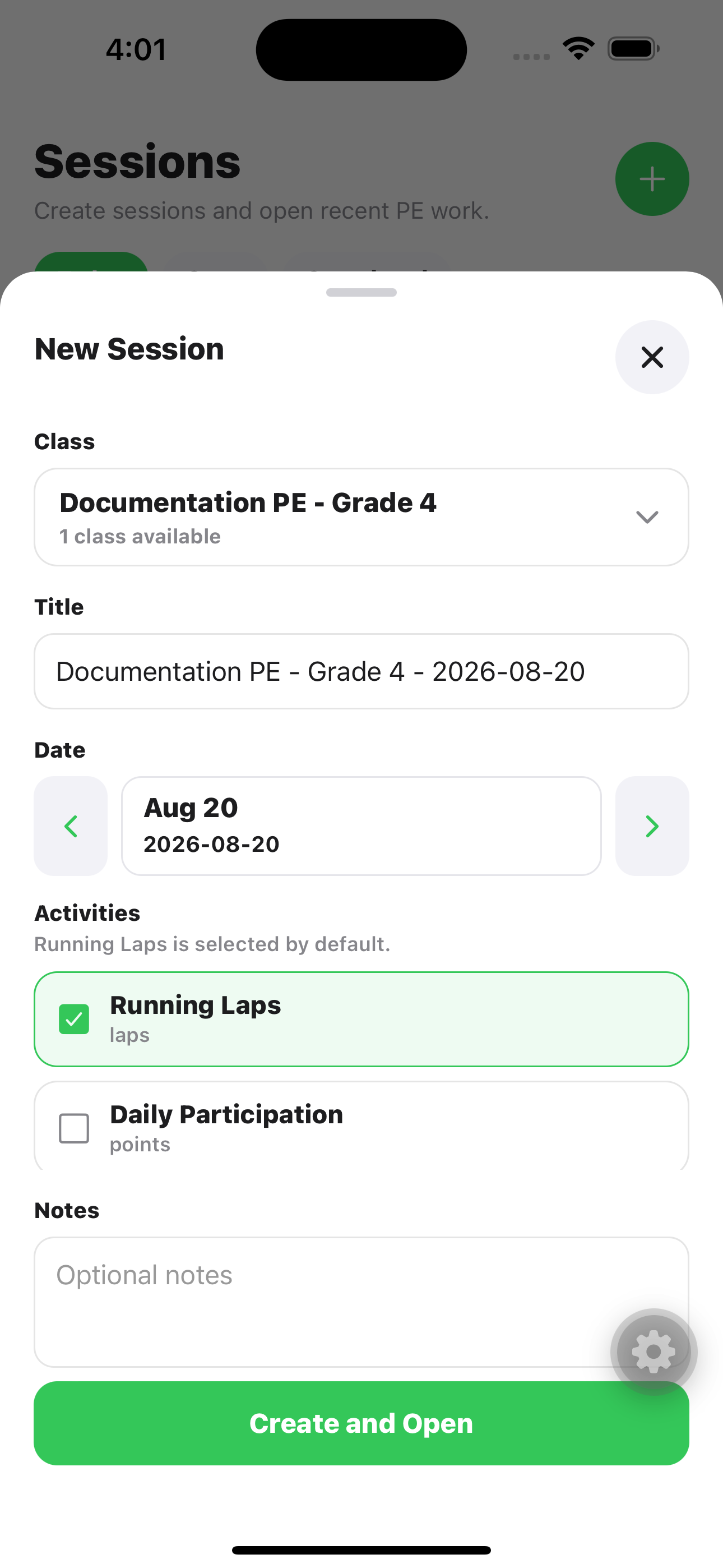
Tap Sessions to view Today, Open, and Completed sessions. Use this path when PE Home does not show the session you need, or select the plus button while online to create and open a same-day class session.
Check the mobile session detail page
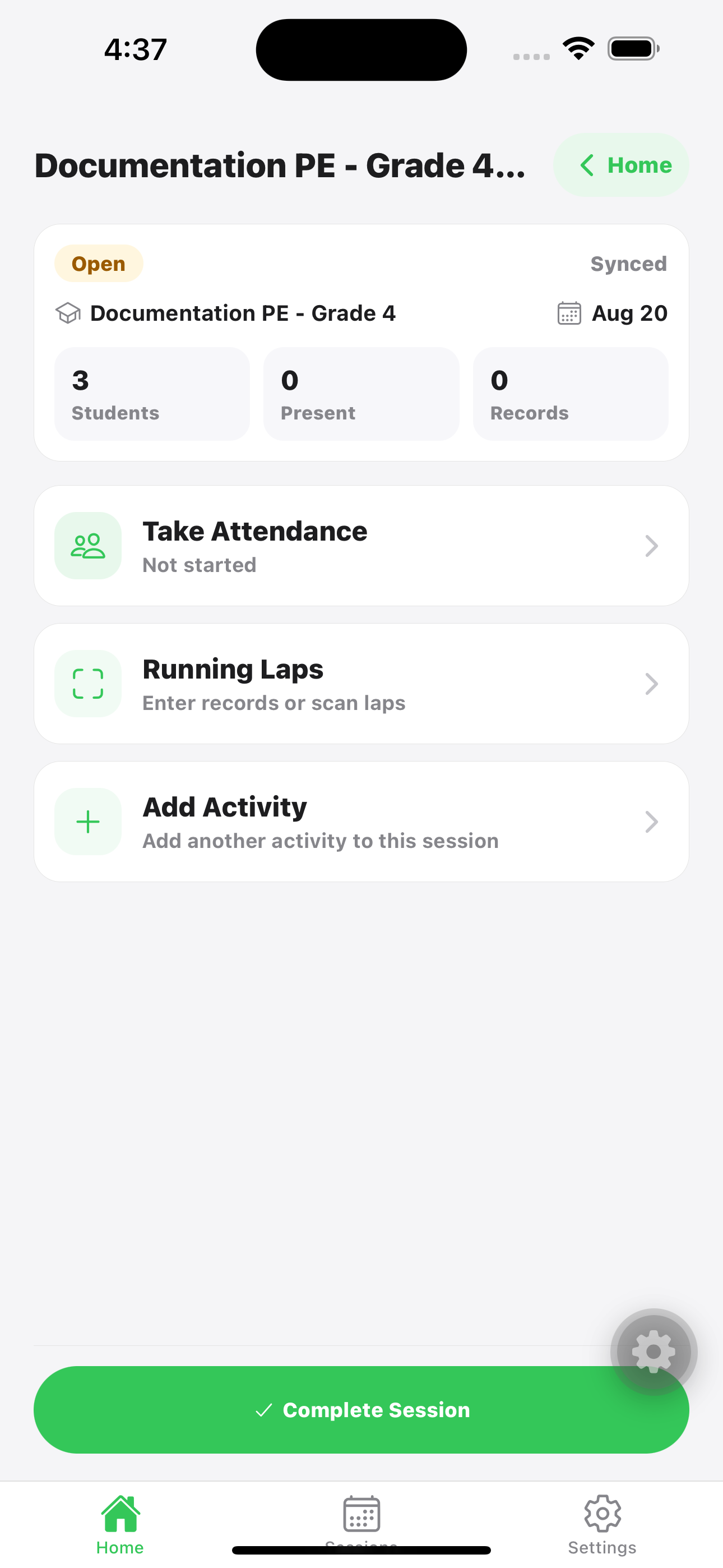
The mobile session detail page is the teacher’s class-time screen. The top area confirms the session title, class, date, status, student count, activity count, and saved-record count. An open session is ready immediately; there is no separate Start button.
Take attendance
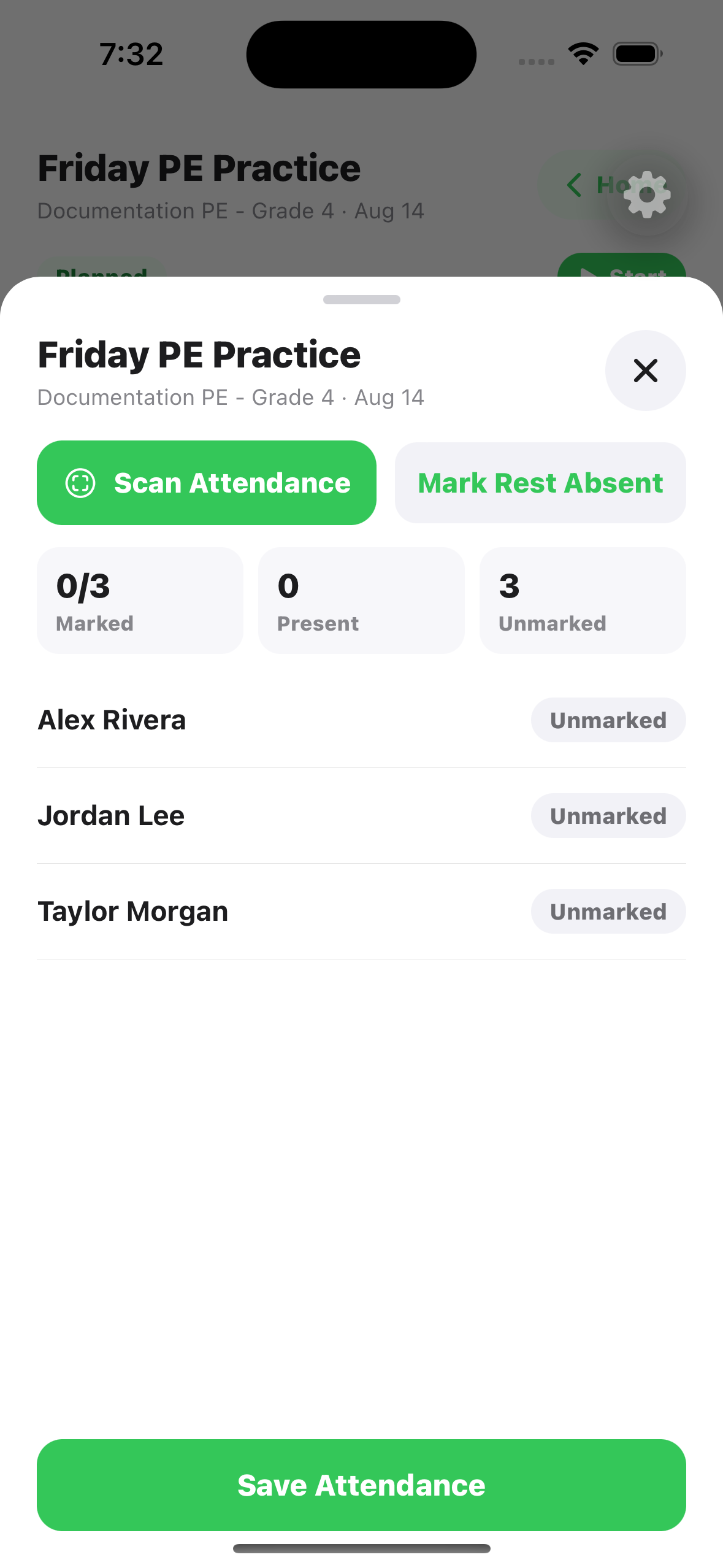
Tap Attendance. Mark each student Present, Tardy, Absent, or Excused, or use Scan Attendance if students have QR cards. Tap Save Attendance before leaving the screen.
Record activities
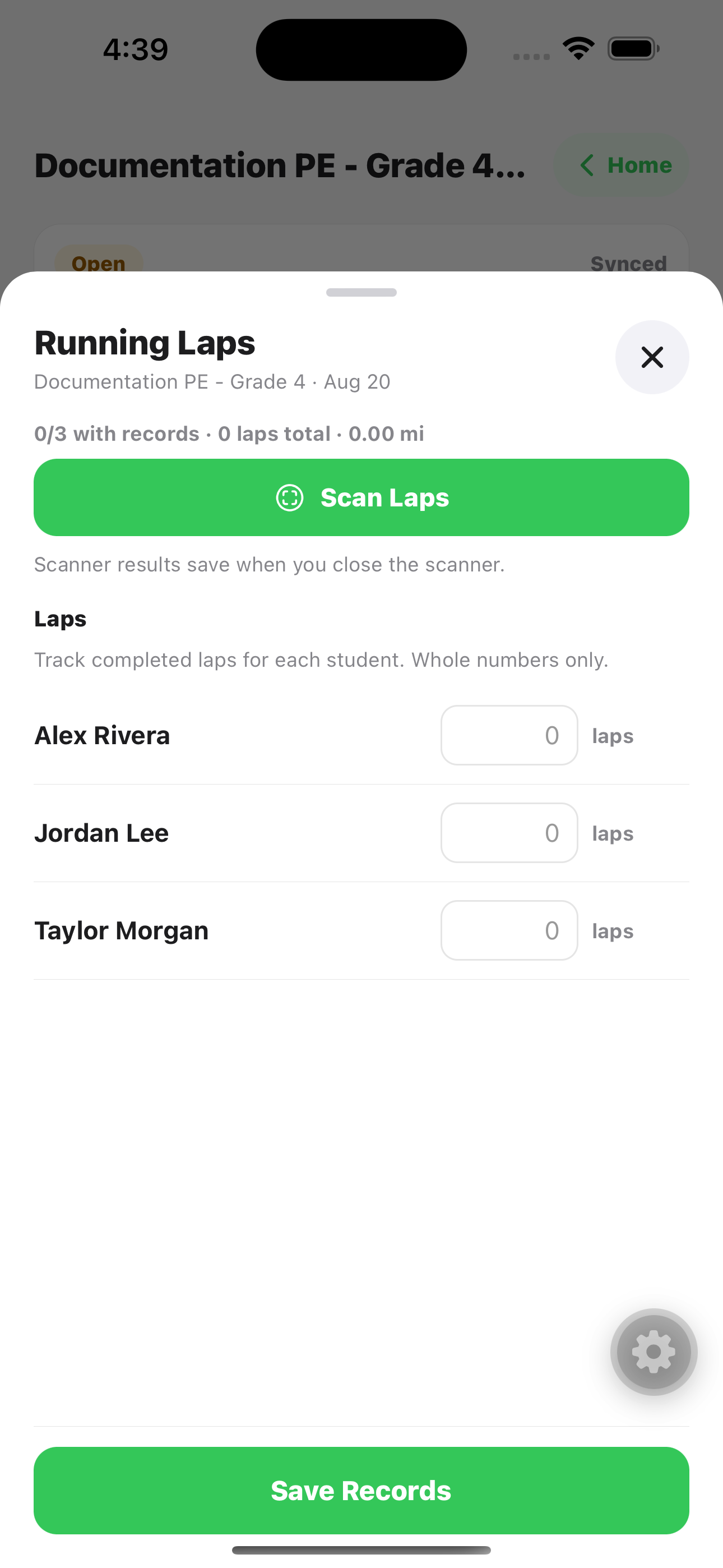
Tap an activity card such as Running Laps. Enter each student’s value, or use the scanner for lap/count activities. Running Laps uses the lap distance configured in the web settings.
Correct mistakes and complete
Before completing, reopen Attendance or the relevant activity card if a saved value looks wrong. Save the correction, then complete the session when class data is ready.