Review reports and share progress
Use this page to choose the right report view, check filters, and share student progress after class records are saved.
Confirm the underlying records
Reports use saved attendance and activity records. Review the source session first when a value appears missing or incorrect.
Choose a Reports view
Open Overview, Classes, Students, Activities, or Running Club, then set the reporting period and relevant filters. Use Running Club when teachers need mileage, lap totals, class mileage, or a running leaderboard.
Check units and distance
Confirm whether the report displays laps, calculated distance, reps, seconds, or points.
Review the student view
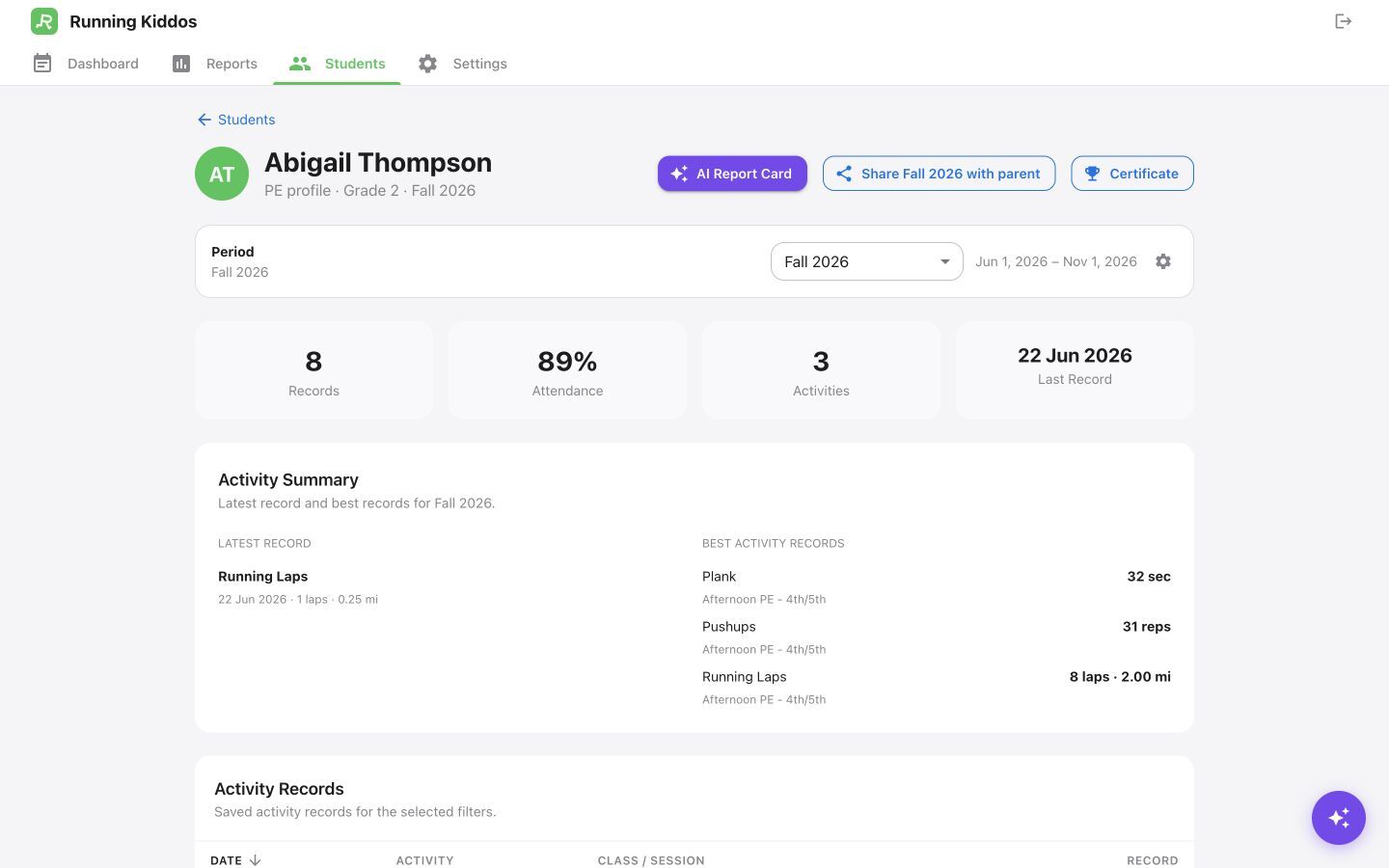
Use the Students report to find the learner, then open the student profile and verify the selected period. The profile also provides certificates; AI Report Card appears only when that optional school feature is enabled.
AI help: see Use AI Features for Ask PE AI questions and student AI report-card workflow.
Create the parent link
Open Students, select the student, choose the period, then click Share [period] with parent. Verify the student before distributing the copied link.
Export a detailed report when available
Some report views include Export. Apply the period and filters first; the downloaded CSV reflects the currently filtered report rows.