AI workflow

Use AI features

Ask PE AI helps teachers summarize saved PE data without building spreadsheets. Use it after classes, students, attendance, and activity records are already saved in Running Kiddos.

Best for

Quick questions about classes, attendance, activity records, students, and PE progress.

Needs data

AI answers are only as useful as the saved attendance and activity records in the selected school.

Availability

AI appears only when the school has AI enabled or is in an active trial.

Open Ask PE AI

Click the purple AI button in the lower-right corner of the web app. The AI panel opens on top of the current page, so teachers can ask a question while reviewing dashboard, reports, students, or sessions.
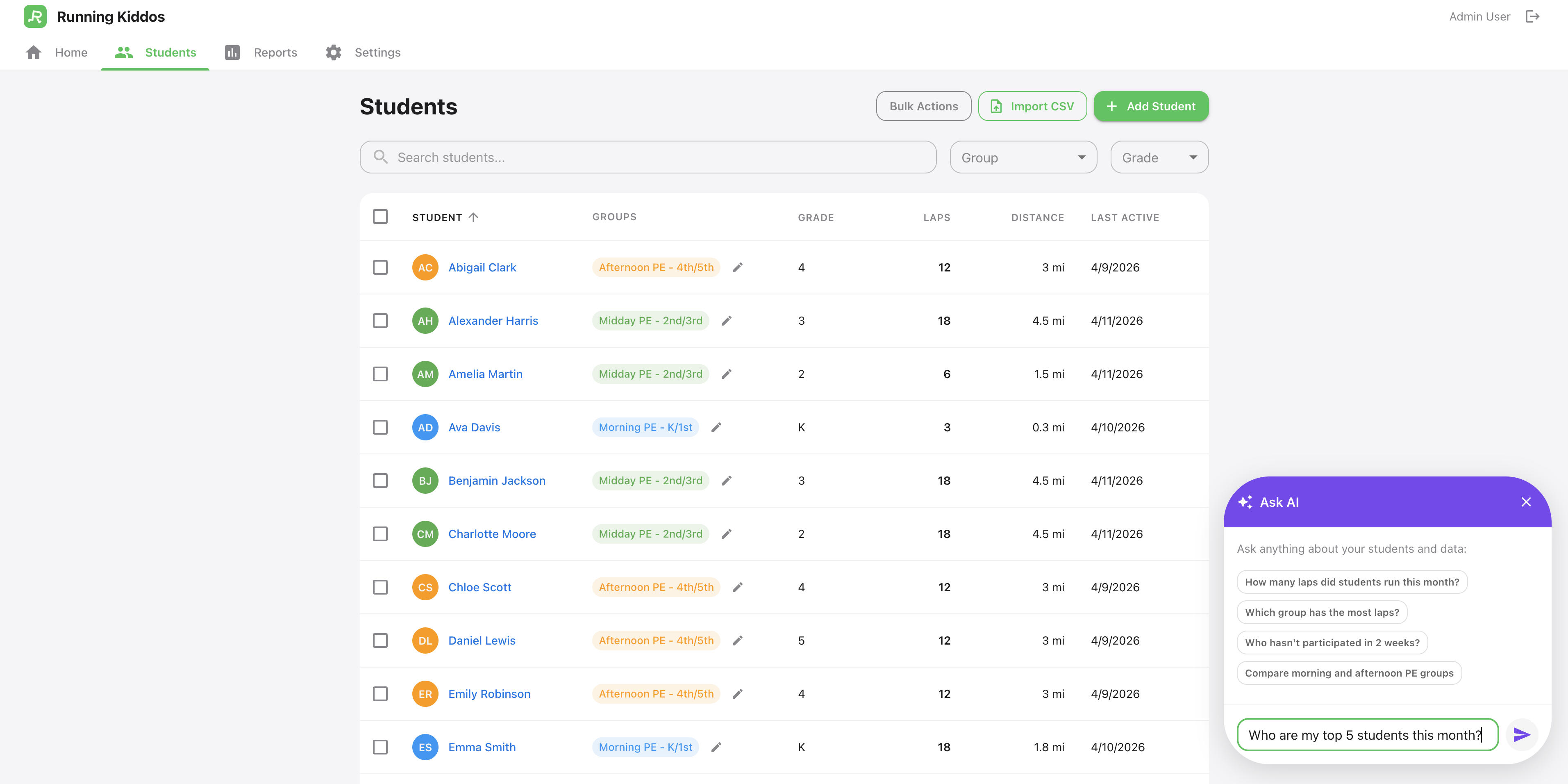
Running Kiddos web app with Ask PE AI panel open and suggested PE questions
ASK PE AI Open the floating AI panel, then choose a suggested question or type your own.
1AI button2Suggested questions
Open web appClick AI buttonChoose suggestion or type

Ask a PE data question

Use plain English. Good questions ask about saved PE data, such as missing records, attendance patterns, activity mix, class comparisons, student progress, or recent trends.
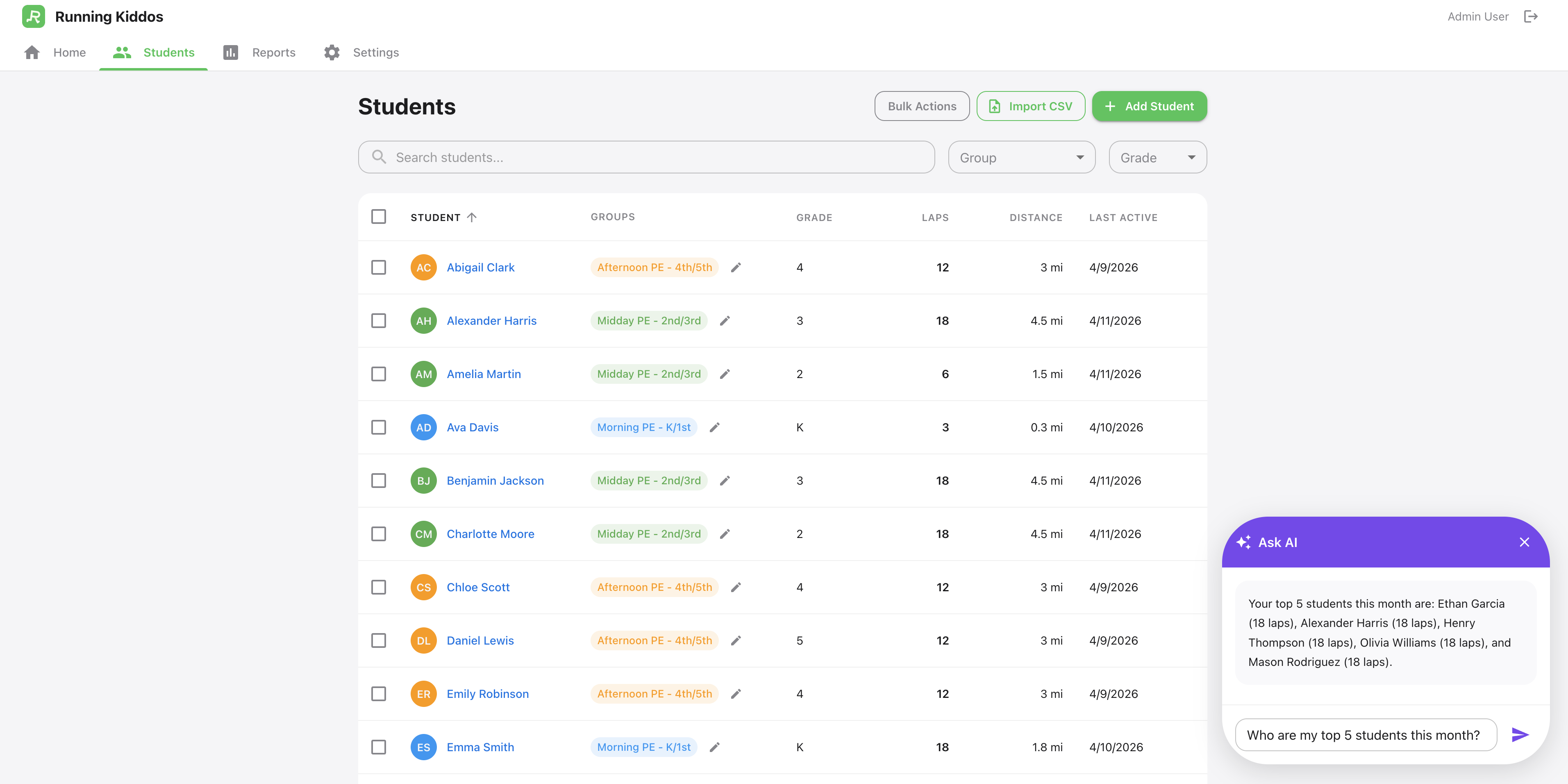
Running Kiddos Ask PE AI response answering a teacher question using saved PE records
AI RESPONSE The answer is generated from saved school PE data that the app retrieves for the question.
1Answer2Question box
Ask who needs follow-upCompare classesSummarize progressCheck activity mix

Useful examples: Which students need PE record follow-up? Compare attendance and activity records by class. Which activities have the most saved records? Summarize recent PE progress.

Generate a student AI report card

Open a student profile from Students or Reports. If AI is enabled, use AI Report Card to draft a short parent-friendly PE progress summary from that student’s saved attendance, activity records, and lap history.

Open student profileChoose reporting periodClick AI Report CardReview before sharing

Expected result: a short draft summary that can help with parent conferences or progress notes.

Teacher review required: read the summary before sharing, especially if the student has limited records in the selected period.

Verify the answer when something looks wrong

AI uses saved Running Kiddos records. If an answer seems empty, surprising, or incomplete, first check the underlying report filters and source sessions.

Check reporting periodConfirm saved attendanceConfirm saved recordsRetry with a specific question

Common cause: records were entered but not saved, or the report period excludes the session date.

Better question: ask for one class, one student, one activity, or one date range when the first answer is too broad.

Use AI with student privacy in mind

Ask PE AI is designed for school PE data inside Running Kiddos. Do not paste unrelated private notes, passwords, access tokens, medical details, or information that is not needed for the PE question.

Use saved PE recordsAvoid sensitive notesReview before sharing

Good practice: ask about attendance, activity records, progress, and follow-up needs already stored in the app.

Privacy-first habit: keep AI questions focused on the minimum information needed to answer the PE workflow question.

Reports GuideStudents GuideTroubleshooting
Learn more: How AI helps PE teachers save time