Roster setup & maintenance
Add and manage students
Use this guide when building a roster or making enrollment changes. It is separate from the daily session workflow.
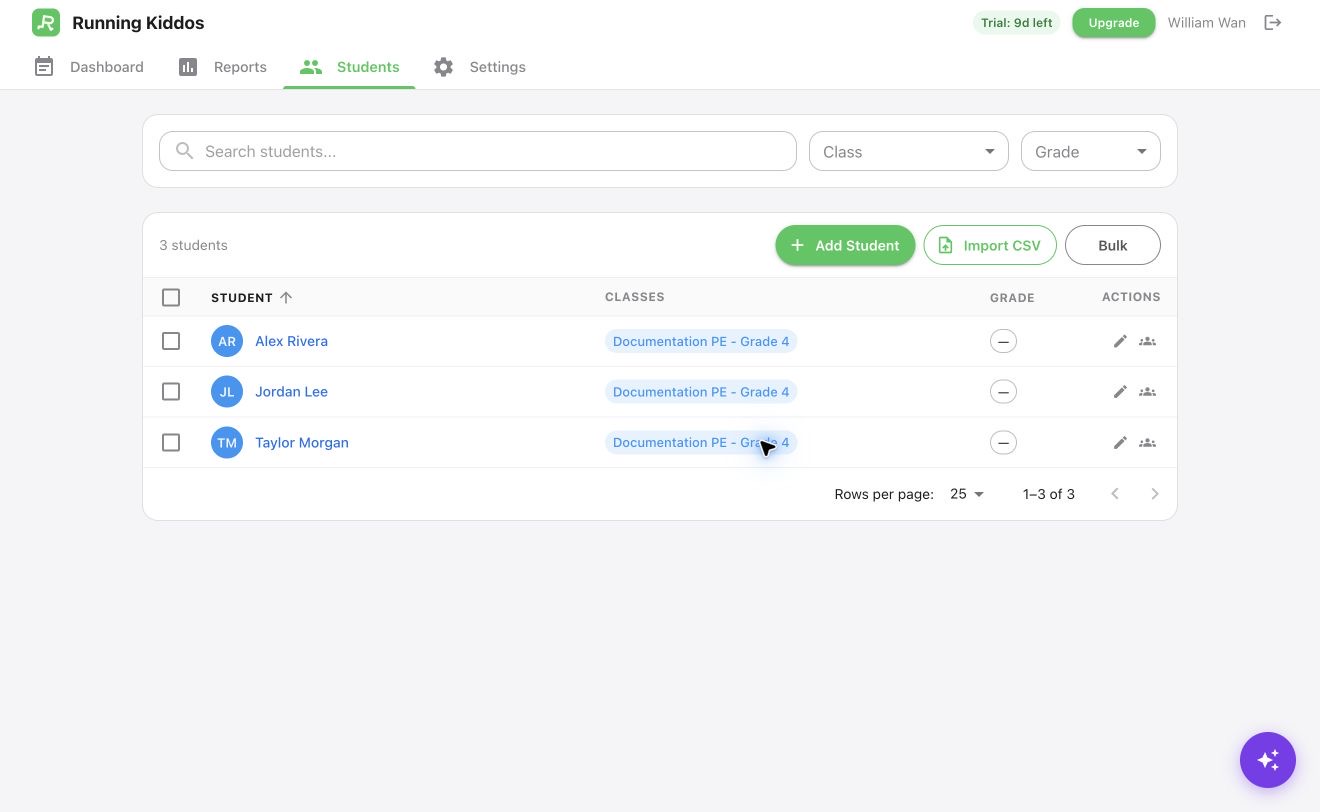
1Search and filters2Add, import, or bulk3Row edit and classes
Choose Add Student or Import CSV
For CSV, use required columns first_name, last_name; grade, class are optional. Matching class names auto-enroll students.
Click Add Student or Import CSVEnter first_name, last_nameOptional grade, class
Assign each student to a class
Use the Manage Classes icon in the student row. A student can belong to more than one class.
Select Manage ClassesChoose one or more classesSelect Save
Review duplicates and spelling
Check names before importing again so one student does not receive multiple profiles.
Use Search studentsCheck spelling and duplicate rowsClick Edit student if needed
Handle enrollment changes
Use Manage Classes for one student. For several students, select their checkboxes and open Bulk to Add to Class or Deactivate. Deactivated students leave classes and scanning.
Select student checkboxesClick BulkChoose Add to Class or Deactivate
Promote grades or print certificates
The same Bulk menu can promote selected grades or create certificates. For a single student, open the student profile and select Certificate.
Select studentsClick BulkChoose Promote Grades or Print certificates