Set up your school and classes
Complete these account-level settings before the first class. Daily sessions, attendance, records, and reports are covered separately.
Create your classes
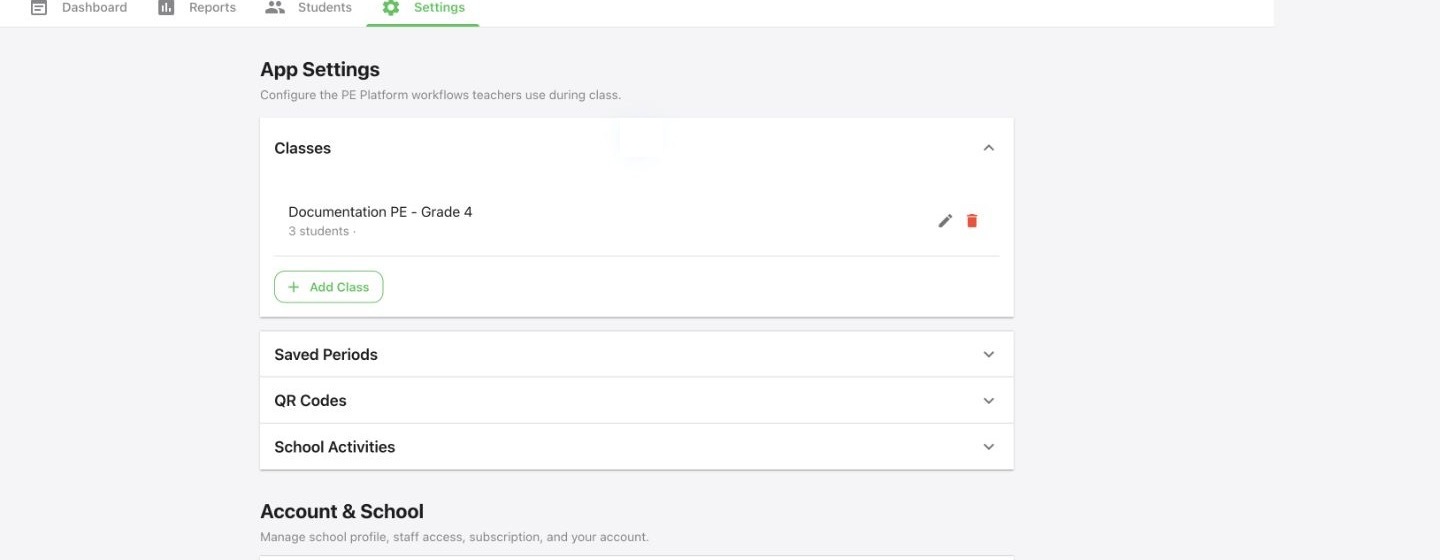
Open Settings → Classes. Use names teachers can recognize quickly, such as “Grade 3 – Period 2,” then select Add Class.
Add the first roster
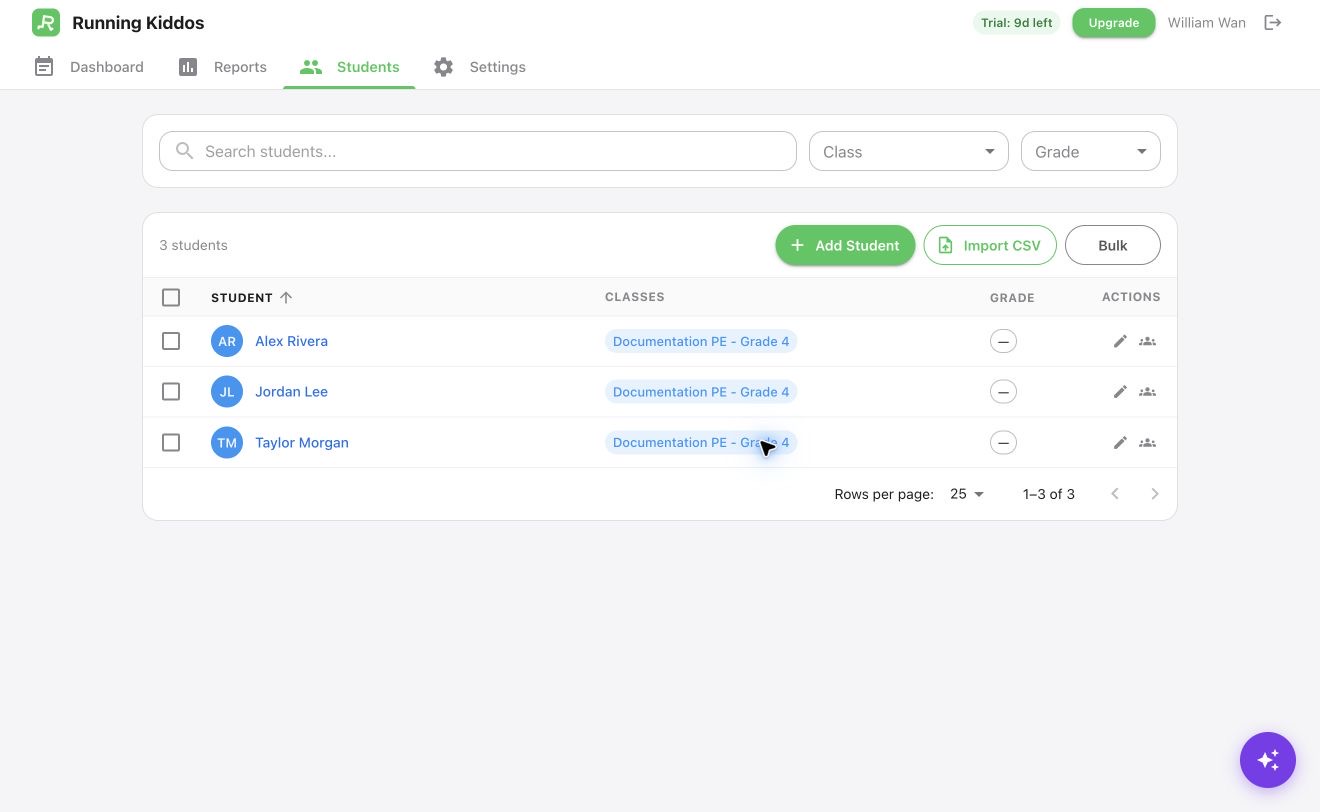
Open Students. Use Add Student for a small test roster or Import CSV for a class list. The roster guide covers the full import and maintenance workflow.
Configure school activities
Open Settings → School Activities. Expand the panel first, then select Add Activity for a new reusable activity or edit an existing one. Set its Unit Type; Running Laps also requires Distance Per Lap.
Optional: create saved periods
Use Settings → Saved Periods to create date windows teachers will reuse in reports. Choose ranges that match how your school reviews PE progress, such as Quarter 1, Fall Semester, a fitness testing window, or a monthly challenge.
Review school and staff access
Under Account & School, administrators can review School Info and Teachers. To invite a colleague, select Add Teacher, enter their name and email, and choose Teacher or Admin. Running Kiddos sends links to verify the email and set a password; use Resend Invite while the address remains unverified. Every signed-in user can open Account, but teacher-role users will not see the administrator-only panels.