Prepare the mobile app before class
Do these steps before the first PE class. Most setup happens in the web app; the mobile app is only used at the end to confirm sign-in and scanner settings.
Create the class roster, choose activities, prepare QR cards, and confirm mobile access.
Teacher login access and permission to manage roster and school activity settings.
PE Home shows the class session, and the opened session shows students and attached activities. Do this setup while online.
Create classes and add students on the web app
Open Students in the web app. Add students manually or import a CSV, then confirm each student is assigned to the correct PE class.
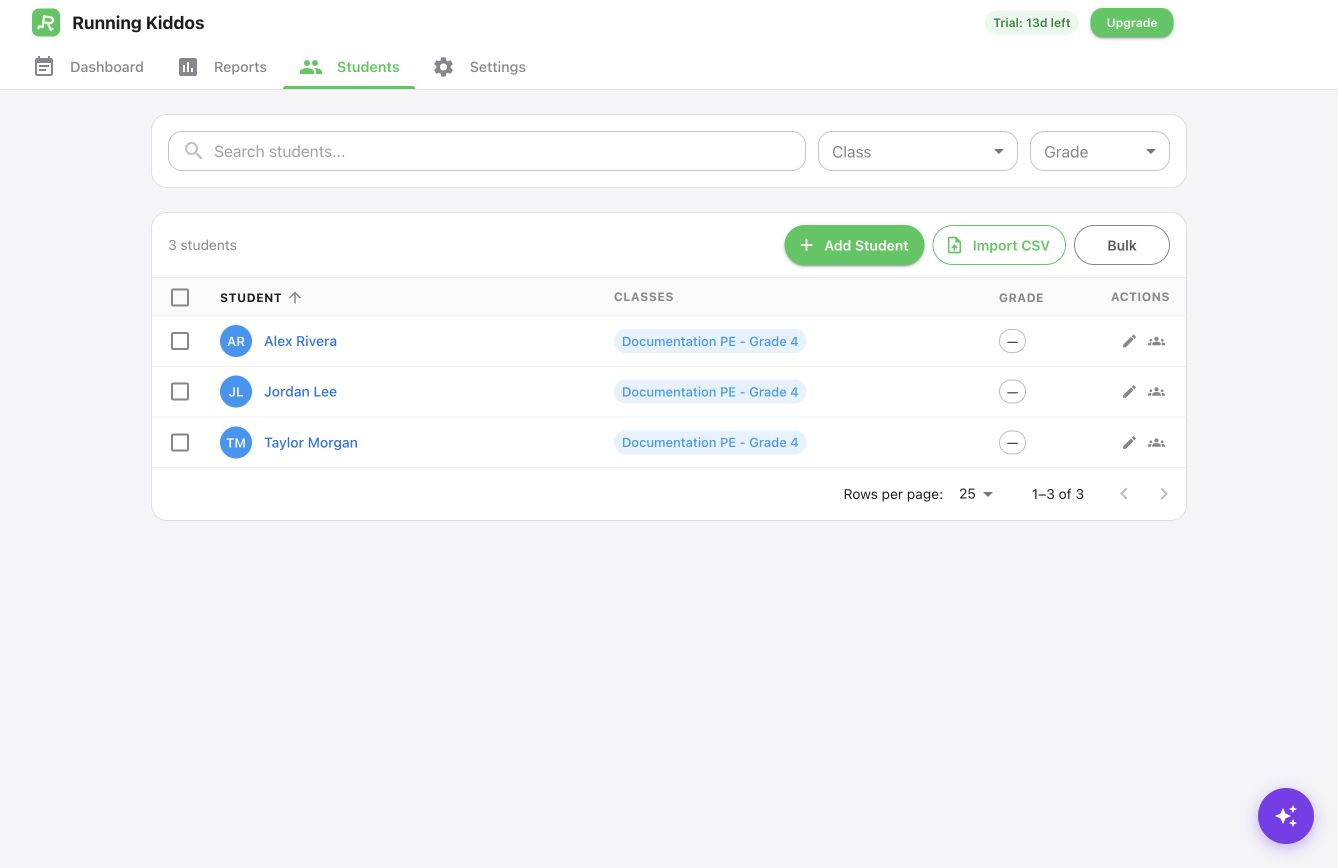
Expected result: the mobile app shows the class and student count in sessions.
Configure school activities
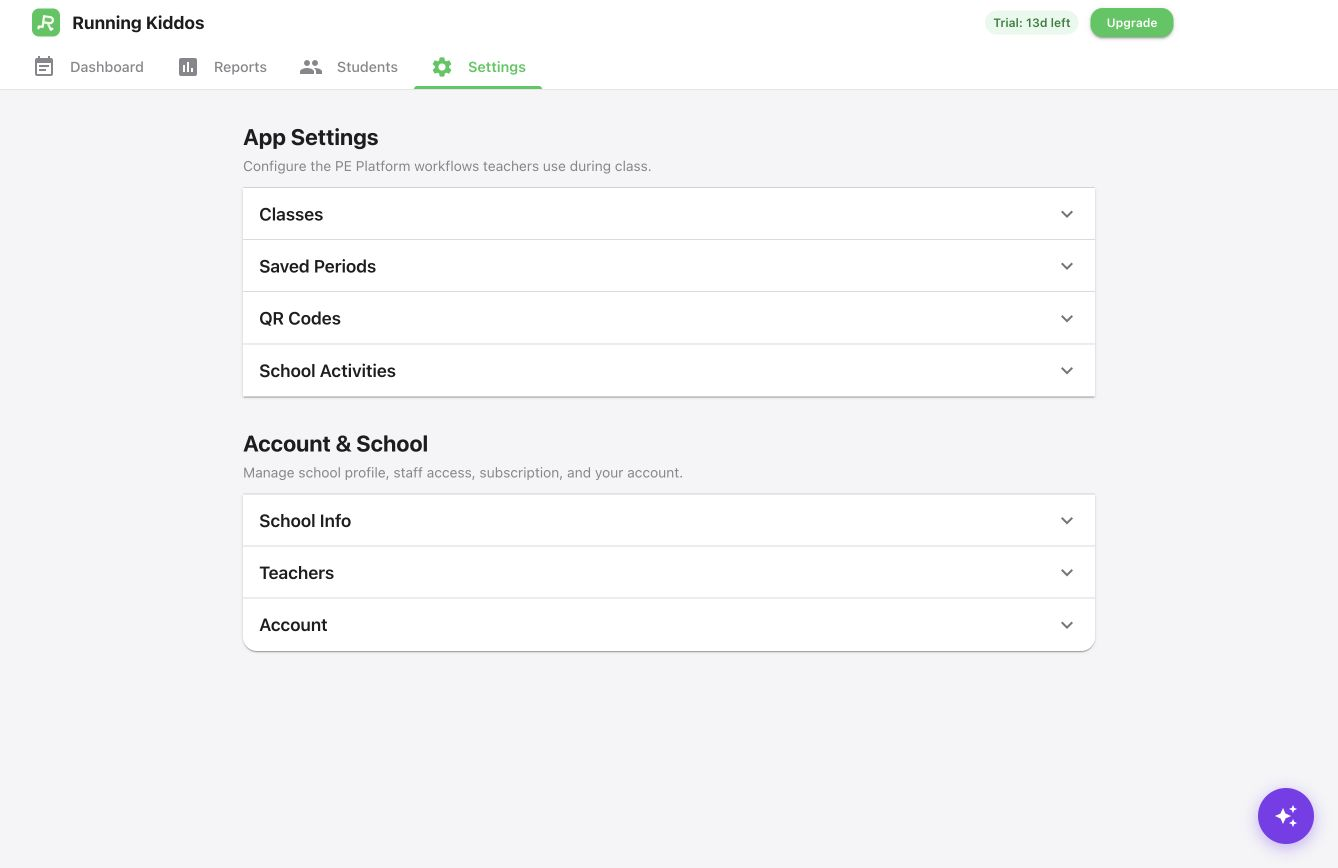
Open Settings in the web app. Under School Activities, keep only the activities teachers can use in class, such as Running Laps, Daily Participation, Jump Rope, Plank, Pushups, and Sit-ups.
Prepare QR cards for lap days
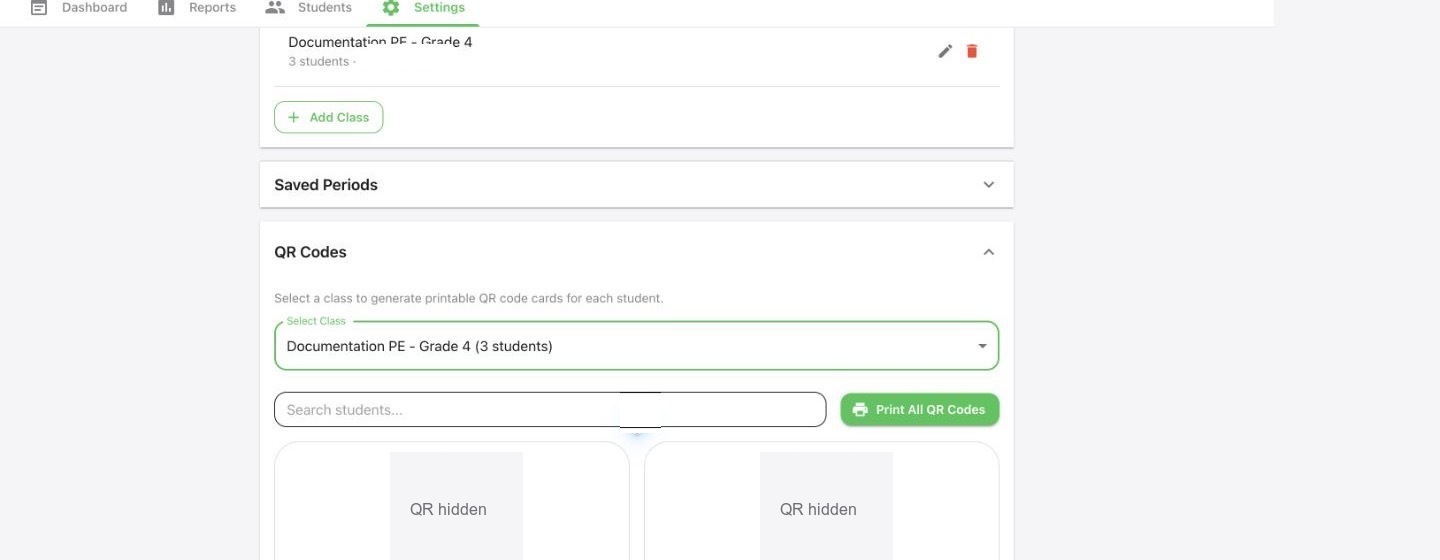
In Settings, open QR Codes, select the class, and print the student cards. QR cards are optional; teachers can still enter records manually.
Sign in to the mobile app
Open Running Kiddos and enter the teacher account email and password, or use the school’s Google or Microsoft sign-in if configured.
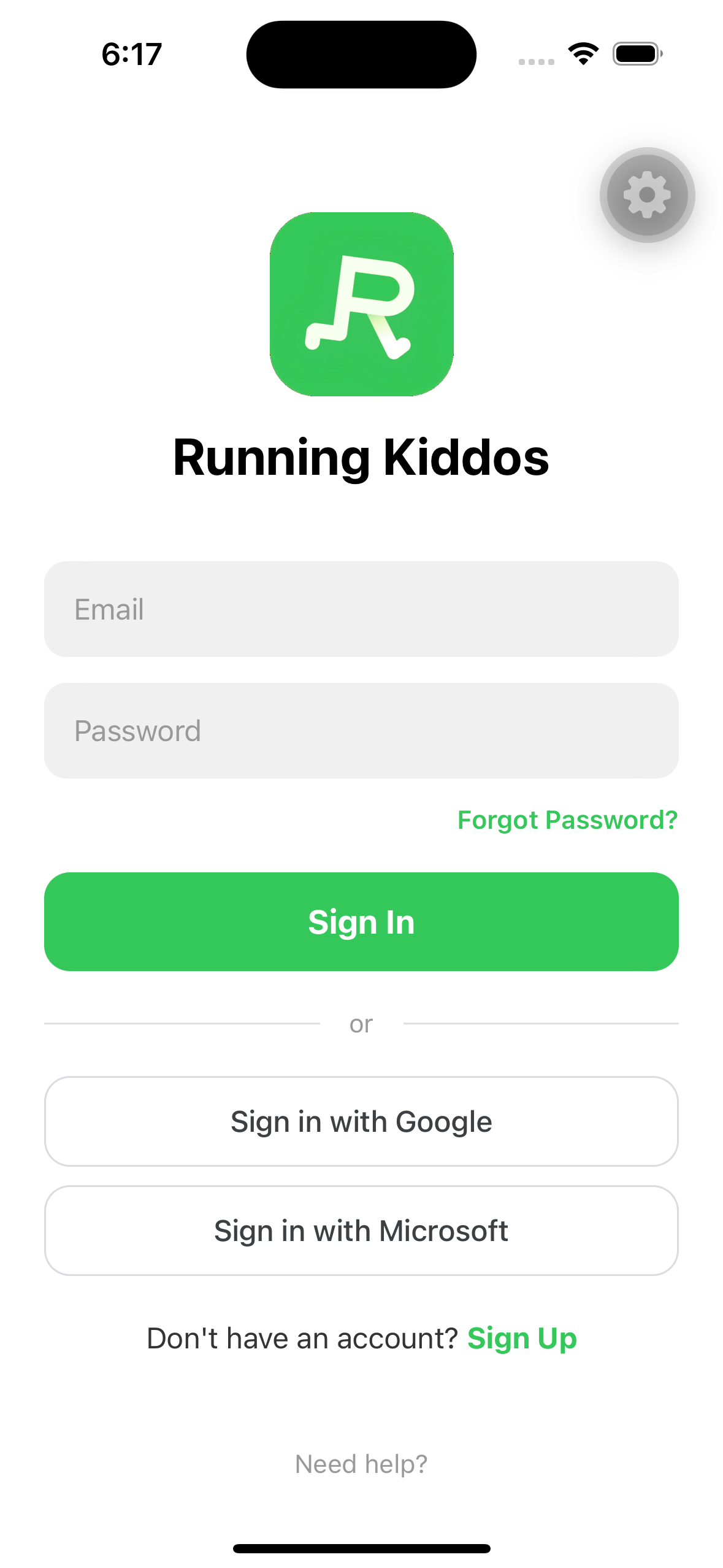
Expected result: the app opens PE Home after sign-in.
Review scan behavior on mobile
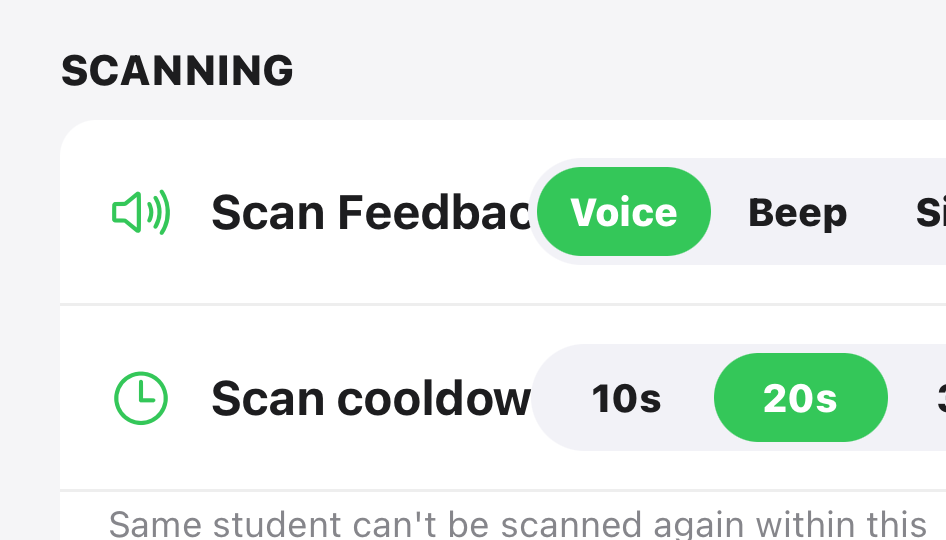
Open Settings in the mobile app. Choose Voice, Beep, or Silent feedback, and set the Scan cooldown before class starts.